

Getting Started with Pindu
This page walks you through installing Pindu, configuring it for your Anki collection, and running your first reading session.
If You're New to Anki
Anki is a free, open-source flashcard application that uses spaced repetition to help you remember what you study. You build a deck of vocabulary cards, and Anki schedules reviews so that you review each word just before you're likely to forget it. Pindu is a free Anki add-on that extends this system with an extensive reading engine and reader UI: instead of reviewing words one card at a time, you read Chinese passages that contain your vocabulary and still get SRS credit for having seen them.
To use Pindu, you'll need:
- Anki (v24.11 or later) installed on your computer. Download it from apps.ankiweb.net.
- A Chinese vocabulary deck, or the willingness to build one. You can download a shared starter deck from AnkiWeb, or add words on the fly from within Pindu.
If You Already Use Anki
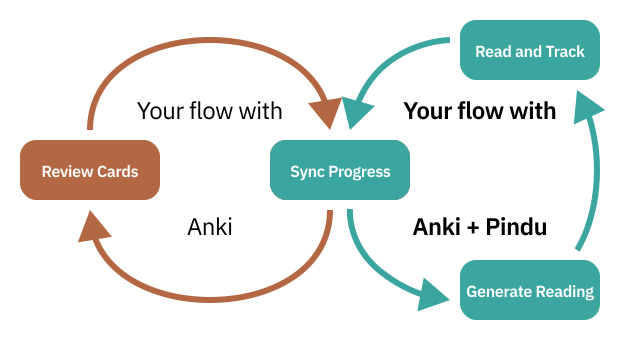
Pindu does not break your current Anki review habits. It is an add-on that gives you a second way to review: reading connected prose instead of flipping individual cards. When you do a Pindu session, the reviews you generate are submitted to Anki's scheduler, the same one that handles your normal reviews. Pindu is meant to work from the same deck you use for normal Anki reviews, but it will also work with its own deck, so you can try it without affecting your existing decks.
Pindu Complements Anki (It's Not a Replacement)
Pindu and traditional Anki reviews are complementary options within your daily practice, not competing systems. Both feed into the same spaced repetition data. Anki "Classic" reviews vocabulary words in isolation: fast, focused, and effective for intensive practice. Pindu gives you reading passages and lets you mark words as you read: immersive, natural, and effective for comprehension. Do either or both in any session. Your work compounds regardless.
Setup For Your First Session
1. Install the add-on
- Open Anki and go to Tools > Add-ons > Get Add-ons.
- Paste in the Pindu add-on code:
600135790 - Restart Anki.
After restart, you can launch Pindu from the Tools menu (Tools > Pindu > Launch), from the "Launch Pindu" button on Anki's main screen, or from the "Pindu (Express)" button on any deck overview.
2. Map your note types
Pindu needs to know which field in your Anki cards contains the Chinese characters. This is configured once per note type.
- Launch Pindu and open the Configure dialog from the sidebar.
- Go to the "Anki Note Type Mapping" tab.
- Select your note type from the "Unconfigured" list on the left.
- Use the dropdown menus to map your note type's fields to Pindu's standard fields. Only the Hanzi mapping is required. (This tells Pindu where to find the Chinese text on each card.) Other mappings (pinyin, English definition, example sentence, audio) are optional and enable richer display and tooling in the reader.
- Click "Add/Update Pindu Configuration". The note type will move to the "Configured" list on the right.
- Save and exit the configuration dialog.
If you use multiple note types across different decks, repeat this for each one. You only need to do this once per note type: the mapping is saved permanently.
3. Run a test session
The quickest way to see Pindu in action is to run a session using the Study Cards (Existing) workflow. This uses example sentences already stored in your Anki cards, so it requires no API keys and no setup beyond the note type mapping above. A Pindu session has four phases:
- Choose a deck: select the Anki deck you want to review. This defines the Pindu "Collection" for the session.
- Load text: select the Study Cards (Existing) workflow and generate reviews. Pindu pulls example sentences from your due cards without modification.
- Read and mark: read through the text. Click a word once to mark it "Hard" (you got it but struggled). Click twice to mark it "Again" (you missed it or couldn't recall it). Words you don't click are implicitly "Good".
- Commit: submit your reviews to Anki. The words you encountered are marked as reviewed in your deck, and your Classic queue shrinks accordingly. Words not in your Anki collection are not marked as reviewed.
Choosing a Workflow
Pindu offers four workflows that differ in how the reading text is sourced:
| Workflow | Text source | API key needed? |
|---|---|---|
| Study Cards (Existing) | Example sentences already in your Anki cards | No |
| Study Cards (AI) | AI-generated sentence per due card | Yes (OpenAI or OpenRouter) |
| Study Collection | AI-generated passage on a topic you choose, calibrated to your vocabulary | Yes (OpenAI or OpenRouter) |
| Read Any Text | Text you paste in or import from a URL | Optional (if re-writing) |
Start with Study Cards (Existing) to get comfortable with the four-phase flow. If your cards don't have example sentences, Study Cards (AI) generates a fresh sentence for each due card instead. Once the workflow feels natural, try Study Collection: this is the mode that gives you the most reading practice per session, generating a full passage on a topic of your choice and calibrating it to your vocabulary level. Read Any Text is for when you've found something you want to read — a news article, a short story, a blog post — and want to read it in Pindu's reader with SRS credit for the words you encounter.
For a detailed explanation of how each workflow generates and processes text, see How Pindu Works.
API Keys and Services
Pindu itself is free. The AI-powered services are not, and they cost whatever you pay your LLM provider directly. Costs vary by provider, model, and usage. Two optional integrations use API keys:
- OpenAI or OpenRouter: for text generation, rewriting, translations, and more. Typical sessions cost a few cents; a month of daily use might total $1–2.
- Azure Speech (default) or OpenAI TTS: for text-to-speech audio in the reader. Azure is the superior and recommended option for Chinese; OpenAI TTS is available as an alternative if you don't want the hassle of setting up Azure.
None of these is required to start. Study Cards (Existing) and Read Any Text (with manual paste) work with no API keys at all. To add keys, open the Configure dialog from Pindu's sidebar and go to the "Services and Accounts" tab.
Where to Go from Here
- How Pindu Works: more technical detail on vocabulary modeling, text generation, segmentation, and SRS integration.
- Pindu demo on YouTube: a walkthrough of a full session.
- Questions? Email [email protected].